.png)
How to use the connections dashboard?
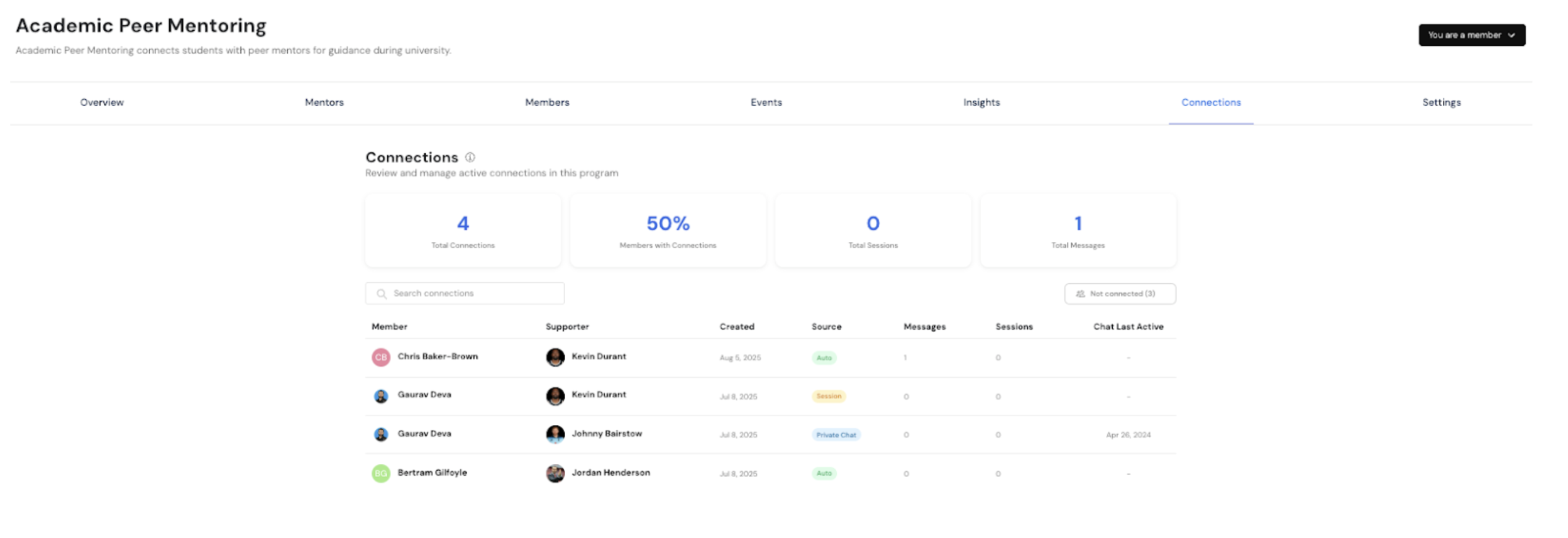
The Connections Dashboard allows you to view, track, and manage every connection created through your programme.
Whether connections are formed automatically or initiated manually, this tool gives you a clear overview of engagement and activity levels.
Accessing the Connections Dashboard
You can access this space by selecting the “Connections” tab from your programme’s main navigation bar.

Once inside, you’ll see a list of all active connections within your programme, along with key summary information for each.
Using the Connections Dashboard as a Programme Admin
The Connections Dashboard isn’t just a reporting tool — it’s a powerful resource for programme admins to monitor engagement, identify trends, and step in with support where needed.
Here are some practical ways to make the most of it:
Summary view of existing connections.
The summary view on the dashboard displays each connection alongside key metrics:
- Created Date – When the connection was initiated.
- Source – How the connection originated (e.g., auto-matched, private chat, or scheduled session).
- Messages – Number of messages exchanged between the users.
- Sessions – Number of sessions completed between the users.
- Chat Last Active – The date the conversation was last active.
Additional ways to track engagement / programme health.
-
Track Engagement Levels.
Use the Messages, Sessions, and Chat Last Active metrics to quickly see which connections are thriving and which may need a nudge. For example, if a connection has been created but no messages have been exchanged, you may want to send reminders or encourage both users to engage.
-
Identify Dormant or At-Risk Connections.
Connections with very few sessions or long periods of inactivity can be flagged as at risk. Admins can then follow up with the users involved, offering additional support or suggesting alternative mentors / supporters.
-
Spot High-Performing Mentors.
By reviewing the number of sessions and messages across connections, admins can identify mentors who are highly engaged. This information can be useful when recognising contributions, gathering feedback, or encouraging best practices across the programme.
-
Monitor Matching Effectiveness.
The Source and Created Date fields help admins understand whether connections are forming successfully through automated matching, manual browsing, or scheduled sessions. If one method shows stronger engagement outcomes, you can refine your onboarding or matching process accordingly.
-
Evaluate Programme Health at a Glance.
Taken together, the dashboard’s data points provide a holistic view of how well your programme is performing. High engagement levels suggest strong alignment between members and supporters, while low activity can help you pinpoint areas to improve — such as onboarding questions, mentor availability, or communication prompts.