.png)
How to change a user's organisational-level role on Vygo?
To manage user roles at the organisational level, you must have Organisational Administrator access. If you are a Program Administrator, you can only manage users within your specific program settings.
Steps to Change a User’s Role:
- Log in to Vygo: Access the Vygo platform via web.vygo.app.
-
Go to Admin Settings: From the menu bar, select the dropdown and click on Users.
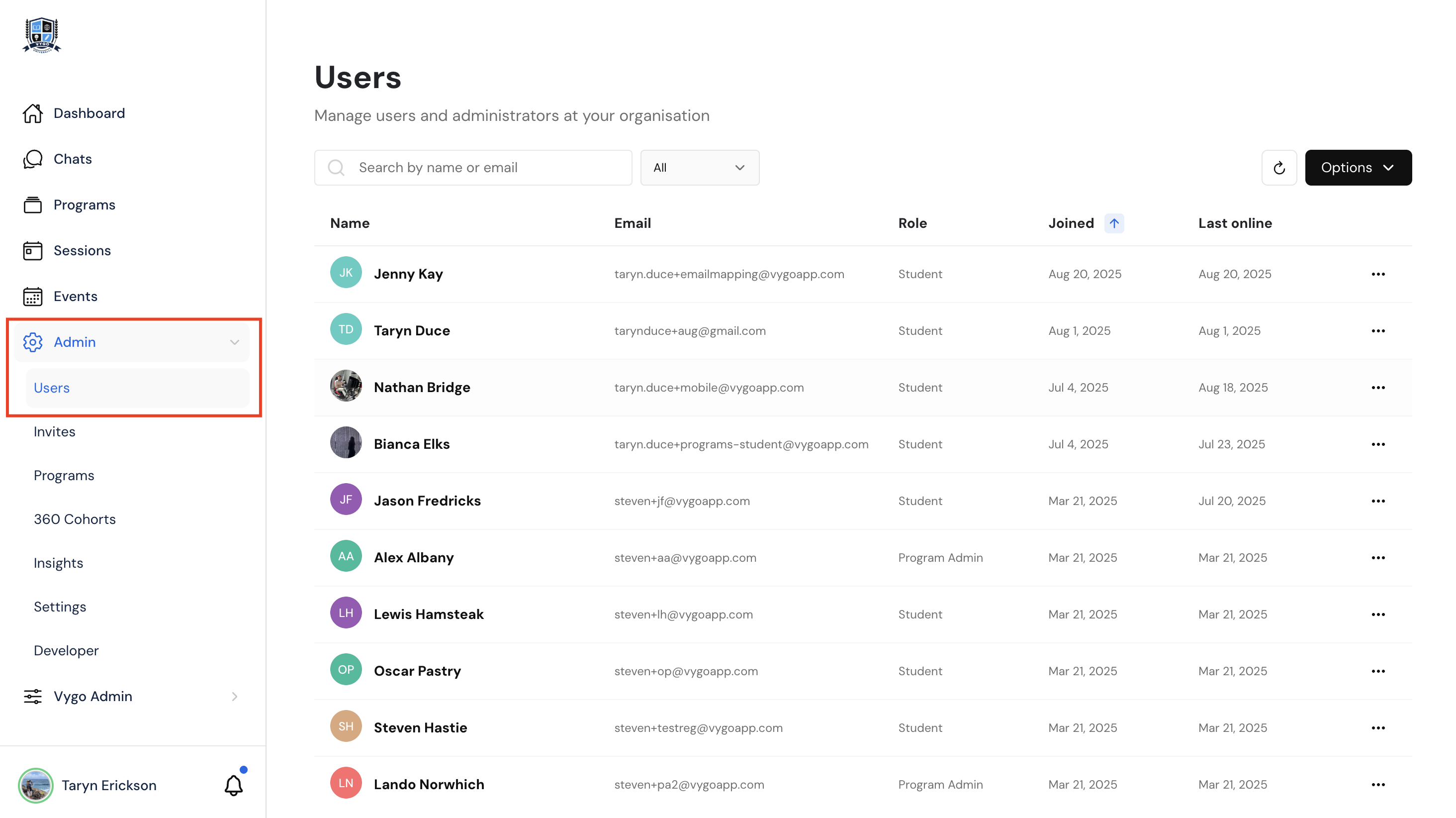
- Search for the User:Use the search bar or filters to locate the specific user based on their role (e.g., Student, Alumni, Industry Expert, Admin).
- Open User Options: Next to the user’s name, click the three-dot menu.
- Select “Change Role”:
- Choose the new role you want to assign (e.g., change an Administrator to a Member, or promote a user to an Owner).
- Save Changes: Confirm the role change to complete the update.
Role management helps ensure each user has the correct level of access and permissions based on their responsibilities.