.png)
How to Enable AI Features in Vygo
AI features in Vygo unlock valuable insights and automation tools that enhance your program’s effectiveness. These features must be enabled by an organisational-owner administrator before they become available to programs across your institution.
⚠️ Important: The AI feature set is only available to institutions that have Vygo’s AI package. If you're unsure whether your institution has access or you would like access, please contact your Partner Success Manager.
Who Can Enable AI?
Only users with organisational-owner admin access can see and manage AI settings. If you’re a program admin or staff member and do not see the AI options, please reach out to your institution’s platform owner.
Steps to Enable AI in Your Environment
- Log into Vygo at web.vygo.app.
- Access Admin Settings:
- In the left menu bar select Admin > Settings.
- Enable Vygo AI:
- In the Settings menu, find and select Vygo AI.
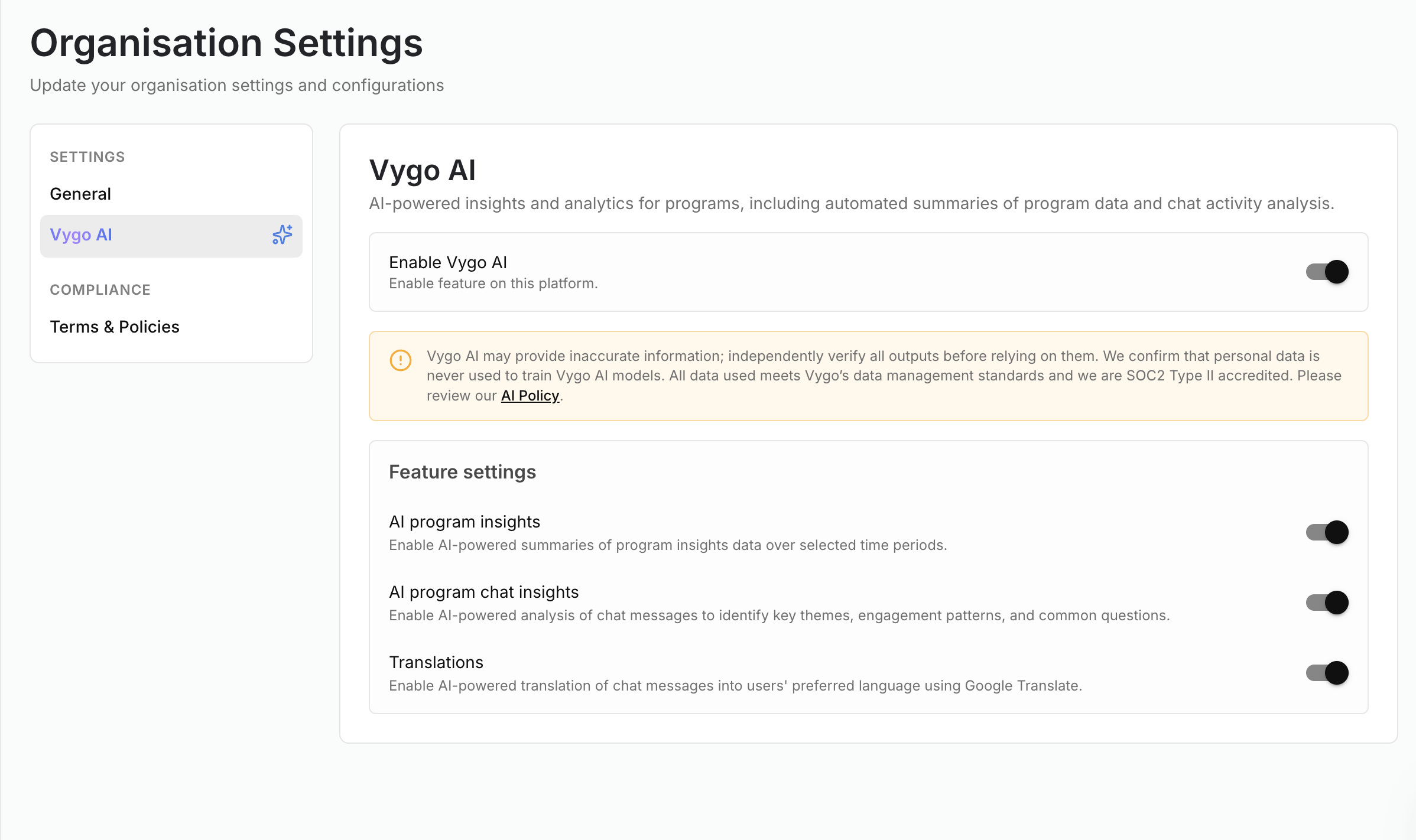
- Toggle the Enable Vygo AI switch to turn on the feature.
- Choose Features to Activate:
- After enabling AI, you’ll see a list of individual AI-powered features.
- You can selectively enable the features you wish to use. You do not need to turn on everything at once—you can return later to adjust settings.
Need Help?
If you have questions about access, configuration, or feature usage, please contact your Vygo Partner Success Manager.